> For the complete documentation index, see [llms.txt](https://docs.ativo.io/llms.txt). Markdown versions of documentation pages are available by appending `.md` to page URLs; this page is available as [Markdown](https://docs.ativo.io/configuration/pi-period.md).
# PI (period)
A Planning Interval (PI) or period, is a timebox in which an increment of an ART is planned and delivered.
### Create a new PI
To create a new PI
* In the top navigation bar, open the PI navigator
* Click **Create PI**
* Enter a **name** and **key**. The key must be unique and should be meaningful, for example `2027Q1`.
* Choose the number of sprints (iterations)
* Click **Create**
#### Configure the shared PI cadence
Complete the shared PI cadence configuration. A PI cadence can be reused across ARTs.
* Define the **start** and **end dates** for each PI sprint (iteration).
#### Configure this ART in the PI
Then configure the PI for the selected ART:
* Confirm whether you want to use the default team configuration, or change it for this PI.
* Map the PI sprints to the Jira sprints of each team working in **Scrum**.\
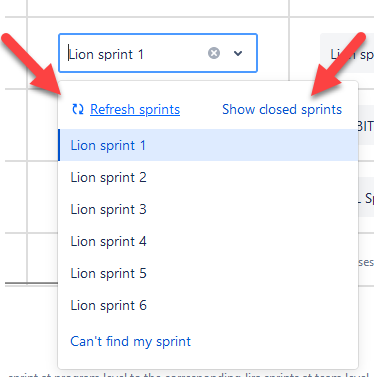
Use **Map Jira sprints** or **Create Jira sprints** to do this automatically, or map them manually by selecting a Jira sprint for each team / PI sprint combination. By default, only open sprints are shown. Click **Show closed sprints** to include closed sprints as well.
* Choose how this PI includes **Features** (Jira epics) from the ART Feature backlog:
* **Select Features manually** on the Plan board
* **Show Features automatically with a Jira filter**
* **Show Features automatically based on Jira Plans dates**
* Choose whether to refine the **Team-level item scope** for this PI. Team-level items come from the team filters, with optional ART rules and optional PI filtering.
* Click **Save**
{% hint style="info" %}
You do not need to configure all sprints at the same time. You can map some sprints, save your progress, and come back later.
{% endhint %}
### Map Jira sprints based on dates
Use **Map Jira sprints** to auto-assign sprints based on Jira sprint start and end dates.
The start and end dates of the Jira sprint should approximately match the dates of the PI sprint.
This only works for [teams configured with a Jira board](/configuration/team.md#switch-between-jira-board-and-custom-team-configurations).
### Create Jira sprints
Ativo can create missing sprints directly on the Jira boards.
This only works for [teams configured with a Jira board](/configuration/team.md#switch-between-jira-board-and-custom-team-configurations).
To create missing Jira sprints:
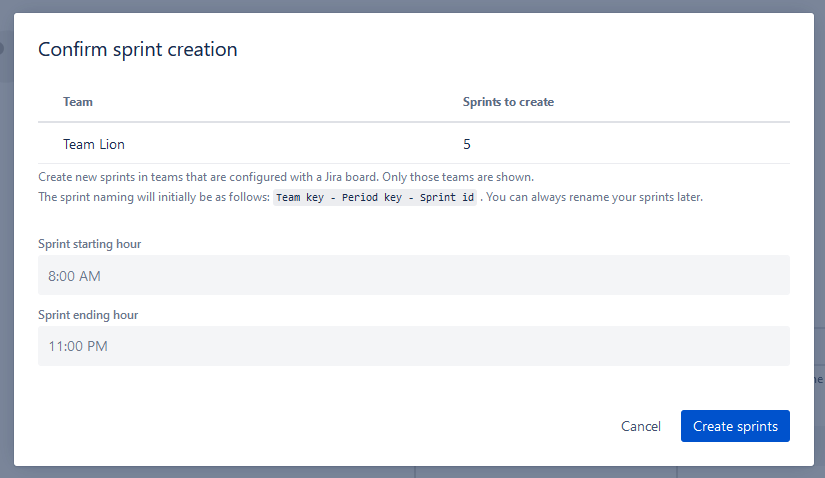
* Click **Create Jira sprints**
* Set the sprint start and end hours
* Click **Create sprints**
Confirm sprint creation
### Can't find my sprint?
Did you create a sprint but cannot find it in the dropdown list?
First:
* click **Refresh sprints** if the sprint was created recently
* click **Show closed sprints** if you also want to see closed sprints
Sprint selection options
If the sprint still does not appear, the next step depends on how the team is configured.
#### Jira board teams
For teams configured using a Jira board, the sprint must be created on that board.
#### Custom teams
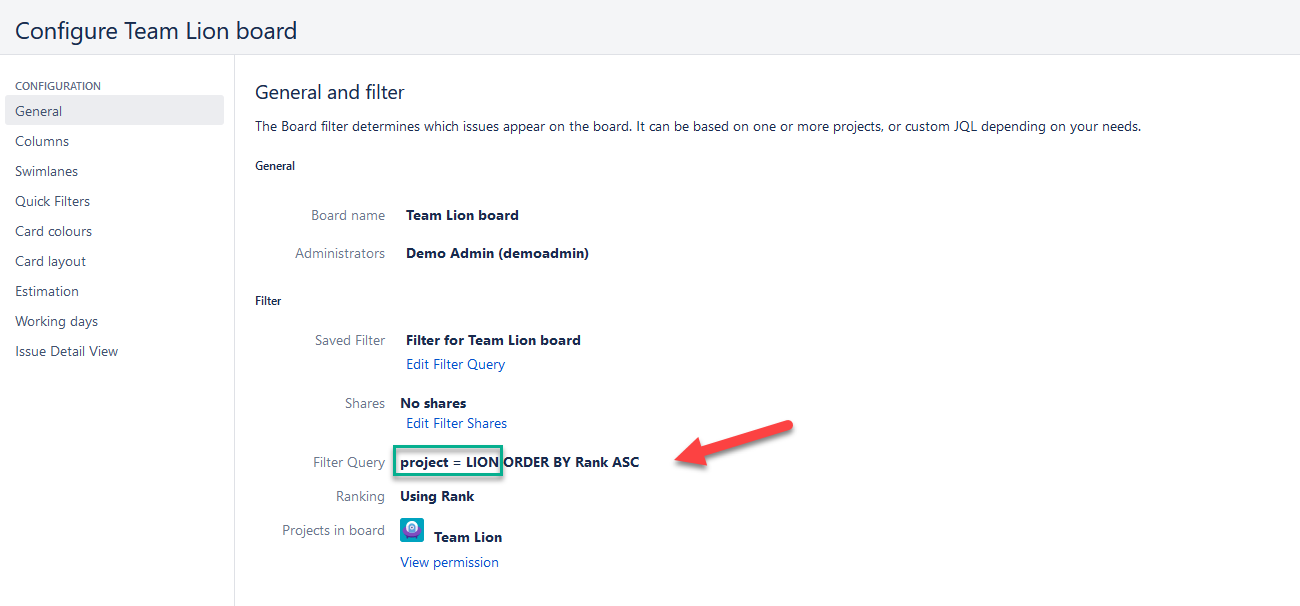
For teams configured in a custom way, Ativo can only show sprints from Jira Scrum boards whose JQL filter explicitly refers to the Jira projects used in the team configuration.
Because of Jira API limitations, other sprints cannot be shown.
For example, if team **Bear** uses Jira project **Bear**, the board filter must explicitly refer to that project.
To add your sprint to the list:
* Open the Jira board where the sprint was created
* Open the board configuration (context menu on the top right)
* In the **General** tab, locate the JQL filter
* Click **Update filter**
* Add an explicit reference to the Jira project(s) used by the team. For example, replace `category in (…)` by `project in (…)`
* Save the filter
The Jira board JQL must contain a reference to a Jira project used in the Ativo team configuration
### Modify a PI configuration
To modify an existing PI:
* Select the **PI** in the PI picker in the top navigation
* Click on ***Settings > PI***
### Completing a sprint
For more information, see [how to complete a PI sprint](/scrum-of-scrums-art-sync/scrum-of-scrums-and-art-sync-preparation.md) .
### Archive a PI
To archive a PI:
* Click on **Settings > PI** in the top navigation bar.
* Click the **•••** menu in the top right corner, then click **Archive PI**
* Confirm that you want to archive the PI